The Drawing Note allows users to visually express ideas using a canvas-based sketch interface. It's perfect for diagrams, mind maps, quick illustrations, or capturing abstract concepts that are hard to describe with text alone.
The top toolbar provides the following tools:
 Drawing note toolbar
- Drawing tools
- Lock / Unlock - keeps selected drawing tool active after drawing
- Pan Tool – Navigate freely across the canvas (also available via mouse wheel or spacebar drag).
- Select Tool (1) – Select and manipulate drawn elements.
- Shape Tools
- Rectangle (2) – Draw standard rectangles.
- Diamond (3) – Insert diamond-shaped nodes (useful for flowcharts).
- Circle / Ellipse (4) – Add round shapes.
- Line Tools
- Arrow (5) – Insert directional arrows.
- Straight Line (6) – Draw basic lines.
- Freeform
- Pencil (7) – Draw freely with hand-drawn lines.
- Text Tool (8) – Add labels and annotations.
- Utility Tools
- Eraser (9) – Remove selected elements.
- More Tools – Bring forward / send backward for layered drawings.
More tools menu
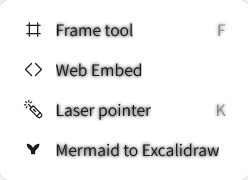 More tools menu
- Frame tool - Draws frames around shapes
- Web embed - inserts web link
- Laser pointer - shows laser-like pointer