in this chapter, you will learn about note component, representing single note, it is obviously the most crucial component of the Notius.
You can imagine one note in Notius as one note sticker. Note is usually displayed in view mode and when neccessary it can be switched to edit mode.
It's apperance may vary little bit based on concrete note type, board it is in, other properties and its current fullscreen state.
One single note can be part of multiple boards (link) or does not need to be in any board at all. Note component offers hover-based interaction, editing, tagging, resizing, encryption and more.
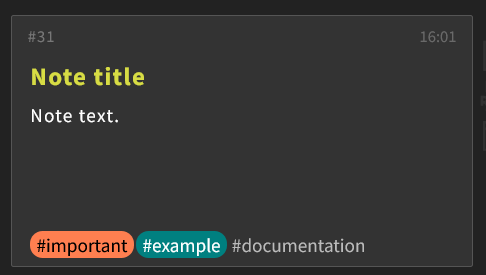 Note example
Notebox interaction
Primary Controls
Appears when the user hovers over the note. These controls offer quick access to essential functions:
 | move note | Drag to reposition the note in current layout (if allowed by board type) or link/move to different board. |
 | full-screen | Expands the note to full-screen view. |
 | edit note | Opens the note in editing mode. |
 | more options | Reveals the secondary menu for advanced controls. |
Secondary Controls
 Secondary menu
Activated by clicking the ... icon in the top toolbar. These controls enhance note management, formatting, encryption and visibility.
 | edit title | Rename the note’s title. |
 | encrypt note | Protects note content via client side encryption. In this case the note text is not indexed for search functionality as we do not have access to its content. Only title and tags are indexed. Be carefull when using encryption as there is no way to recover note content in case of lost password. |
 | set double width | Expands the note to double its normal width for better layout readability. |
 | bookmark note | Marks the note for quick access or priority filtering. |
 | enable markdown | Enables markdown support for styled text. Disable if yor content interfer with markdown commands (or use """ before and after critical parts). |
 | share note | Shares the note via url link, either public or private. |
 | delete note | Marks note as deleted so it will appear only by search using /is:deleted command in library. |
 | remove from view | Hides the note from the current view without deleting it. |
Note resizing
- A resize handle is available by bottom-right corner. Resize is applied globaly to all notes (special handling is applied for kanban board).
Available note tabs
- Note (default view): Shows title, content, and tags.
- Files: Reserved for attachments or file-related content.
- Info: Currently not awailable.
Tag display
Optional tagging can help to use fine-grained categorisation and "flagging". For even better visual reference it is possible to set color of the tag (
see tags).
Content drag'n'drop and clipboard paste
The note component supports drag-and-drop interactions. It allows users to enhance notes by directly dragging various elements into the note area:
- Text: Drag selected text from other web page into a note to insert it there.
- Tags: Drag existing tags from one note to another to categorize or flag it appropriately. This facilitates quick organization and retrieval of notes based on tags.
- Files: Drag file from your computer directly into a note. The file will be attached to the note, making it easy to reference documents, images, or other resources.
Dialogs examples
Shortcuts
It is possible to use shortcuts for some of note component functions. See
here.